ge Combine
Creating one polished image from several different photos used to require professional editing skills. Designers often had to cut out subjects, create masks, manage multiple layers, adjust colors, match perspective, recreate shadows, and carefully blend every edge.
Artificial intelligence is changing that process.
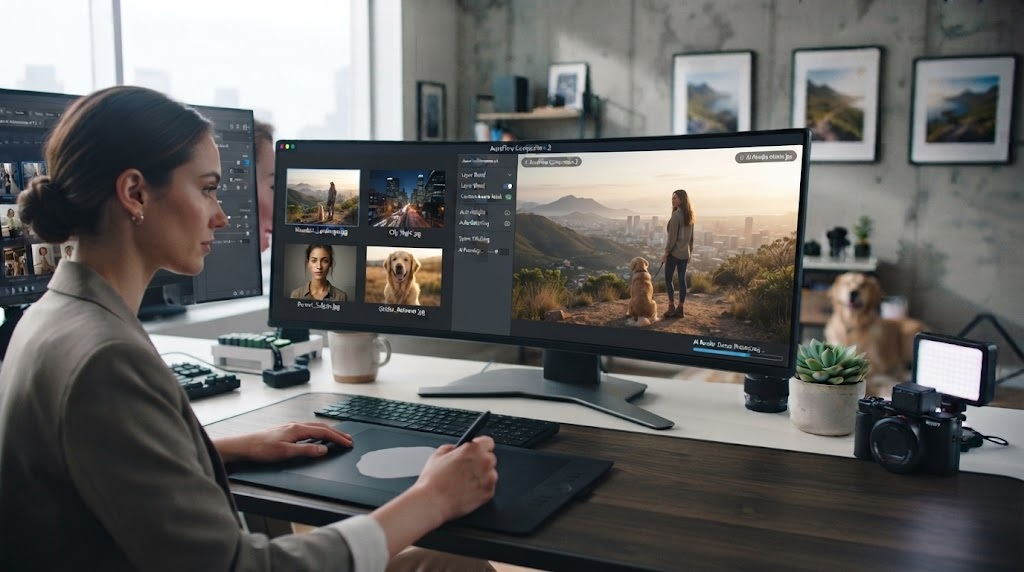
An AI image combiner can analyze several source photos and help merge them into one cohesive image. Instead of manually cutting and positioning every element, you can upload the images you want to use, explain how they should work together, and let AI handle much of the technical compositing.
This type of tool can be useful for online sellers, marketers, photographers, designers, content creators, small businesses, and everyday users who want professional-looking visuals without spending hours inside complex editing software.
Pixlio’s AI image combiner, for example, allows users to upload multiple source images and choose different ways to merge them, including Auto Combine, Product in Scene, Subject into Background, and Creative Blend. It also provides an Extra Guidance field for more specific instructions.
Whether you want to place a product in a lifestyle setting, move a person into a new background, combine several concepts, or create an artistic visual, AI can make image merging much more accessible.
What Is an AI Image Combiner?
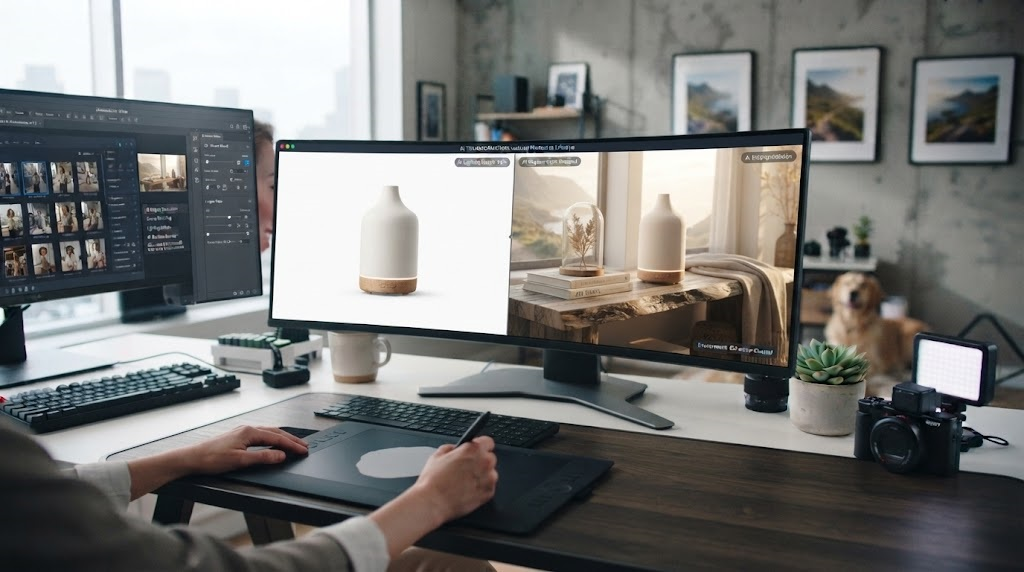
An AI image combiner is an artificial intelligence tool designed to merge elements from two or more images into a single visual.
It differs from a basic collage maker.
A traditional collage usually places photographs beside one another inside a grid or template. The photos remain visibly separate.
An AI image combiner attempts to understand the subjects, backgrounds, perspective, lighting, colors, shadows, and overall composition of the uploaded images. It can then generate a new result where those elements appear to belong together.
For example, you could upload:
- A photo of a coffee maker
- A photograph of a modern kitchen
- A reference image showing warm morning lighting
You could then ask AI to place the coffee maker naturally on the kitchen counter while following the lighting style of the third image.
The result is intended to look like one coordinated scene rather than three separate pictures pasted together.
Pixlio states that its combiner automatically handles elements such as placement, lighting correction, shadow generation, scale adjustment, and edge blending during the combining process.
How Does an AI Image Combiner Work?
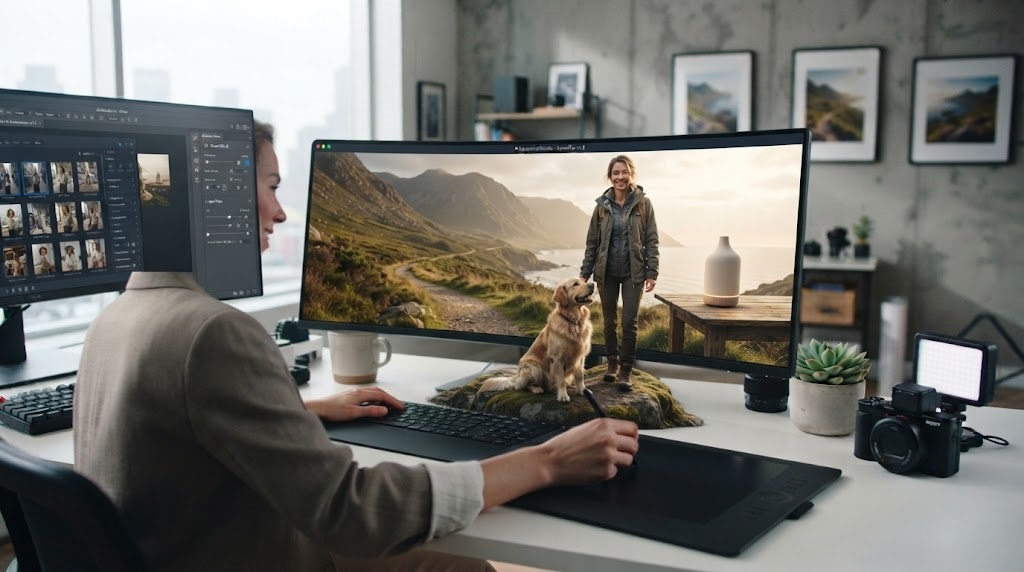
Traditional photo compositing requires the editor to make most decisions manually.
AI takes a different approach.
The system examines the source images, recognizes important subjects and objects, interprets your instructions, and produces a new composition based on the information it receives.
AI Analyzes the Source Images
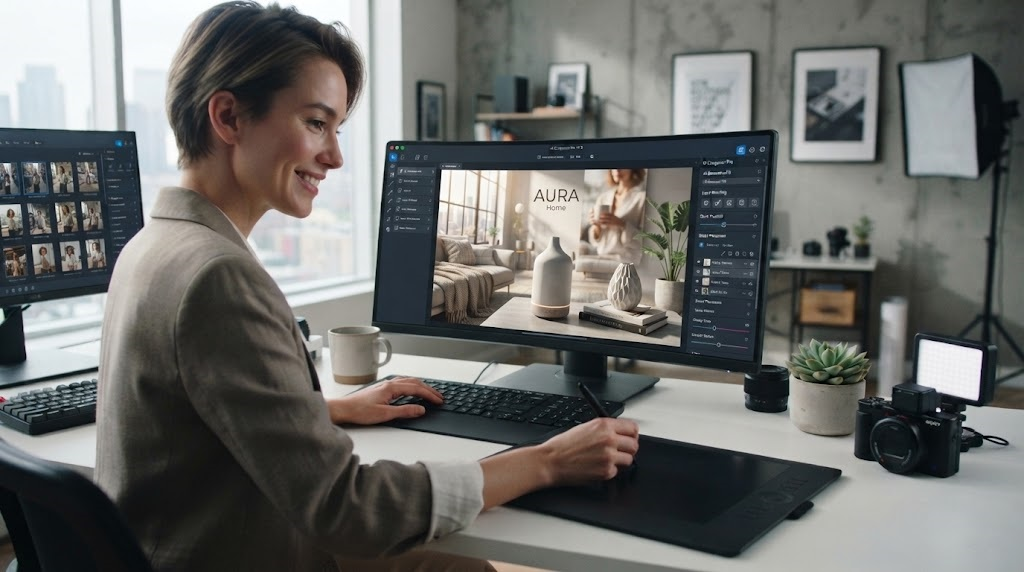
The first step is understanding what appears in each uploaded photograph.
The AI may identify people, pets, products, buildings, backgrounds, textures, colors, and other important visual elements.
This makes it possible to understand which parts of each image should contribute to the final result.
AI Understands Your Instructions
Many modern AI tools allow natural-language instructions.
Instead of manually creating masks, you might simply write:
“Place the chair from image one inside the living room from image two.”
Or:
“Put the person from the first photo on the beach shown in the second image and match the sunset lighting.”
The clearer the instruction, the easier it is for the system to understand the intended composition.
AI Rebuilds the Final Composition
The tool then attempts to match scale, perspective, lighting, shadows, colors, and edges.
This is where AI image combining becomes especially useful. A subject photographed under bright studio lights may need to be adjusted before it looks believable inside a softly lit room.
A capable AI photo combiner can automate much of that visual matching.
Why Use an AI Image Combiner?
The biggest advantage is speed.
Professional compositing can take significant time, especially when several photographs are involved. AI reduces many manual steps.
No Advanced Design Skills Required
Traditional editing tools often require knowledge of layers, selections, masks, feathering, blending modes, color grading, and perspective.
An AI combiner can simplify that process into a workflow based on uploads and instructions.
Pixlio’s current tool is designed around this approach: upload the source photos, select a combine mode, add optional guidance, and generate the result.
Faster Content Creation
Businesses and creators constantly need new visual content.
Instead of arranging another product shoot every time you need a different scene, you may be able to reuse existing product photographs and combine them with new settings.
This can be useful for advertisements, website banners, social media posts, promotional graphics, and concept images.
More Creative Flexibility
AI makes experimentation easier.
You can try a different background, composition, visual theme, or atmosphere without rebuilding the entire image manually.
That can make the creative process faster and encourage more variations.
Popular Ways to Use an AI Image Combiner
The technology can serve many different purposes.
Create Product-in-Scene Images
One of the most useful applications is e-commerce photography.
Imagine that you sell home décor online. You have a clean photograph of a lamp against a plain background, but you also want customers to see how that lamp might look in a stylish living room.
An AI image combiner can help place the product into a lifestyle setting.
Pixlio includes a dedicated Product in Scene mode designed specifically for placing products or objects into lifestyle environments.
This can help online sellers create:
- Lifestyle product images
- Social advertisements
- Product catalog visuals
- Website banners
- Marketplace graphics
- Promotional content
Product accuracy remains important. Sellers should always inspect AI-generated visuals to make sure the item has not been unintentionally changed.
Put a Person Into a Different Background
Another common use is moving a subject into a new environment.
You might have a strong portrait but dislike the background. Instead of scheduling another photo shoot, you could combine the portrait with a different location.
For example, AI could help place someone into:
- A professional office
- A city environment
- A beach
- A studio
- A conference setting
- An outdoor landscape
Pixlio’s Subject into Background mode is designed for moving a person, pet, object, or character into another scene.
This can be useful for profile images, creative portraits, marketing materials, and social media.
Combine Family or Group Photos
Getting everyone together for one perfect picture is not always possible.
Different family members may appear in separate photos, someone may have missed an event, or the best expressions may come from different shots.
AI photo combining can help create a group-style composition from multiple images.
Lighting, pose, perspective, and image quality can affect the final result, so simple source photos generally work better than extremely complicated ones.
Pixlio notes that its tool can be used for family, friend, and pet composites, although fine details can vary when compositions become complex.
Create Social Media Graphics
Social content often needs to grab attention quickly.
Creators can combine portraits, products, backgrounds, props, textures, and other visual elements to create unique posts without manually assembling every piece.
This can be particularly useful for:
- Instagram posts
- TikTok graphics
- YouTube thumbnails
- Facebook advertisements
- Pinterest content
- Promotional announcements
An AI image merger can turn several basic source images into something more visually interesting.
Develop Creative Concepts and Mood Boards
Designers and creative teams can also use AI combining during early concept development.
Instead of spending hours making a polished mockup before everyone agrees on the direction, a designer can quickly merge reference photographs to communicate an idea.
Pixlio lists concept artists and designers among the potential users of its image-combining workflow, including for reference-image combinations and early-stage visual concepts.
How to Combine Images With AI Using Pixlio
The process is designed to be straightforward.
Step 1: Upload Your Source Images
Start by choosing the photographs you want to combine.
Pixlio currently supports JPG, PNG, and WebP files up to 15 MB each. Standard access allows 2–4 images per generation, while active Pro and Max plans support up to eight images.
Choose clear source images whenever possible.
Good lighting, sharp subjects, and unobstructed objects give AI more useful information.
Step 2: Select a Combine Mode
Pixlio provides four main options.
Auto Combine allows AI to choose a merging approach.
Product in Scene is intended for placing products and objects into lifestyle settings.
Subject into Background helps move people, pets, characters, or objects into another environment.
Creative Blend is designed for more artistic combinations involving concepts, textures, references, or imaginative compositions.
Selecting the mode closest to your goal helps guide the generation.
Step 3: Add Extra Guidance
This is where you can become more specific.
For example:
“Use image one as the product. Use image two as the background. Keep the product shape and color exactly as shown and create realistic shadows underneath.”
Clear instructions can help reduce ambiguity.
Pixlio provides an Extra Guidance field so users can describe which image supplies particular elements or explain the intended lighting and composition.
Step 4: Choose an Aspect Ratio
Different platforms require different image dimensions.
Pixlio currently lists options including 1:1, 3:4, 9:16, 4:3, and 16:9.
A square composition may work well for marketplace listings, while 9:16 is useful for vertical social content and 16:9 suits many website banners and video thumbnails.
Step 5: Generate and Review the Result
After generation, inspect the finished image carefully.
Pay attention to:
- Faces
- Hands
- Product labels
- Logos
- Text
- Shadows
- Reflections
- Object proportions
- Background details
If something looks wrong, revise your guidance and generate another version.
Tips for Better AI Image Combining Results
AI is powerful, but the quality of your instructions and source files still matters.
Use Clear, High-Quality Images
Sharp source photographs usually provide better visual information than heavily compressed or blurry pictures.
Try to avoid images where the main subject is hidden behind other objects.
Explain the Role of Each Image
Do not make the AI guess when you already know what you want.
Instead of saying:
“Combine these.”
Try:
“Use the sofa from image one, the room from image two, and the warm lighting style from image three.”
Protect Important Product Details
When creating commercial images, state which features must remain unchanged.
This is especially important for packaging, logos, colors, shapes, and product proportions.
Pixlio itself notes that AI combining is designed for natural composites rather than guaranteed pixel-perfect reproduction and that small details such as logos, text, or exact facial features may sometimes shift.
Keep Perspective in Mind
Images photographed from dramatically different angles may be harder to combine realistically.
When possible, choose source images with compatible camera angles and lighting.
AI Image Combiner vs. Traditional Photo Editing
Traditional software remains valuable when absolute precision is required.
Professional editors may need pixel-level control over masking, color correction, placement, typography, and exact brand details.
An AI combiner focuses more on speed and accessibility.
For many everyday tasks, the difference is simple:
Traditional editing gives you more manual control.
AI image combining gives you faster automation.
They can also work together. AI can produce an initial composite, while professional editing software can be used afterward for final refinements.
Frequently Asked Questions About AI Image Combiners
What is an AI image combiner?
An AI image combiner uses artificial intelligence to merge elements from multiple source photographs into one new, cohesive image while attempting to match placement, lighting, scale, shadows, and edges.
Can AI combine two photos into one?
Yes. You can upload two photos and instruct AI to place a subject, product, object, or visual element from one photo into another.
Can I combine more than two images?
Yes. Pixlio currently accepts 2–4 images for standard generations, while its Pro and Max plans support up to eight source images.
Can an AI image combiner create product photos?
Yes. Product-in-scene combining is one of its most useful applications. You can use a product photo together with a lifestyle background to create promotional visuals.
Can AI combine people from different photos?
Yes, although results depend on the source photographs, pose, lighting, perspective, and complexity of the composition.
Does Pixlio support different image formats?
Yes. Its AI image combiner currently accepts JPG, JPEG, PNG, and WebP uploads up to 15 MB per file.
Do I need Photoshop skills to combine images with AI?
No. AI combining tools are designed to automate many tasks traditionally completed using masks, layers, selections, lighting adjustments, and manual blending.
Will AI preserve every detail perfectly?
Not always. Fine details such as text, logos, faces, and small design elements can sometimes change during generation. Important commercial images should always be reviewed before publication.
Conclusion
An AI image combiner makes advanced photo compositing much easier for people who do not want to spend hours manually cutting, masking, repositioning, and blending images.
You can use it to place products into lifestyle environments, move people into different backgrounds, combine family photos, create marketing materials, develop social media graphics, or experiment with entirely new visual concepts.
Pixlio simplifies this workflow by allowing users to upload multiple source images, select from Auto Combine, Product in Scene, Subject into Background, or Creative Blend modes, add detailed instructions, and choose an appropriate aspect ratio before generating the final composition.
The strongest results come from clear source photographs and precise instructions. Tell the AI exactly what should come from each image, explain what must remain unchanged, and review important details after generation.
AI does not necessarily replace professional photo editing when perfect precision is required. What it does offer is a much faster way to move from separate images to a polished visual concept.
For business owners, online sellers, marketers, designers, photographers, and content creators, that can mean producing more visual variations with less manual work.
As AI image technology continues to develop, combining photographs is becoming less about mastering complicated editing tools and more about clearly describing the image you want to create. An AI image combiner turns that idea into a practical workflow, helping users transform multiple source photos into a single creative result.